
Lives in your menu bar
One click opens a small popover with all your shares. No window to manage, no dock icon.
macOS 15 or later · SMB and NFS · any NAS

How it works
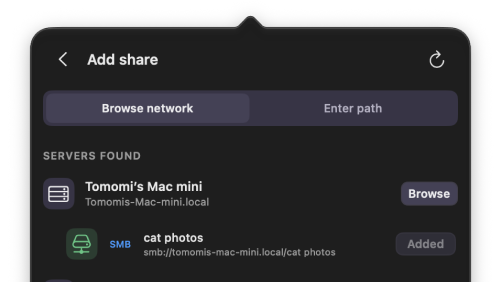
Open Mountie from the menu bar. Browse for an SMB server, enter an SMB or NFS path, or use a share already mounted in Finder.
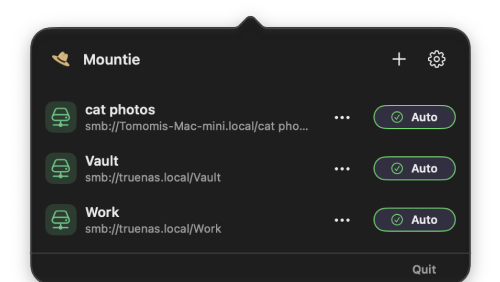
Enable Auto mount for the shares you want to keep connected. Turn on Launch at startup to reconnect them after you sign in.
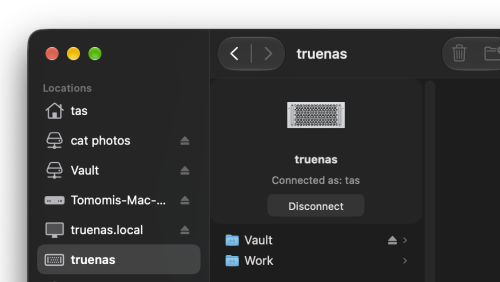
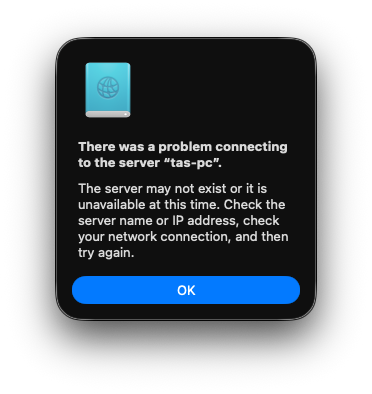
Mountie reconnects your shares after sleep and network changes. Check their status whenever you need to, right from the menu bar.
Features
One click opens a small popover with all your shares. No window to manage, no dock icon.
Shares reconnect after sleep or a network change, so your files are there when you reach for them.
Browse nearby network servers and pick the share you want. Mountie supports SMB and NFS.
Know exactly where it lives? Enter an SMB or NFS address, or import a share already mounted in Finder.
See what's mounted and whether automatic reconnection is enabled, right from the popover.
A focused way to keep your network shares connected. Small, quick, and easy to understand.
Made for your Mac
Try every feature free for 30 days, then unlock Mountie for $9.99 USD once.
No subscription, automatic charge, or account.
FAQ
Mountie requires macOS 15 or later.
Mountie supports SMB and NFS shares that your Mac can already connect to.
Yes. They appear in Mountie. Turn on Auto mount to keep them connected.
Mountie retries shares with Auto mount enabled when your Mac wakes or the network changes.
macOS handles authentication and can remember passwords in Keychain. Mountie does not store them in its settings.
No. Try all features free for 30 days, then unlock Mountie for $9.00 USD once. The trial does not charge you automatically.
No. Mountie works on your Mac without an account or cloud sync.